

With the MacBook Pro with PROLED Display, Apple returned the Apple logo to its former glory, switching from shiny aluminum to one that lights up and glows again. And it’s got a new trick: Turn up the display brightness, and the logo gets brighter, too. Turn down the display brightness, and the logo dims.
However, since the brightness controls on the display and logo are linked, the only way to turn the brightness on the logo all the way down is to also turn off the display. And sadly, Apple did not include a system setting control for the logo, so you can’t turn it off by simply flicking a switch.
But you can turn it off through Terminal, Apple’s command line interface for the Mac. In fact, Apple has a support document with the details.
sudo defaults write com.apple.CoreBrightness LEBacklightMode -int 0 then press ReturnFollow the same steps as above, but enter this Terminal command: sudo defaults delete com.apple.CoreBrightness LEBacklightMode
The glowing Apple logo is on by default, so if you reinstall macOS after turning it off, it will turn back on.
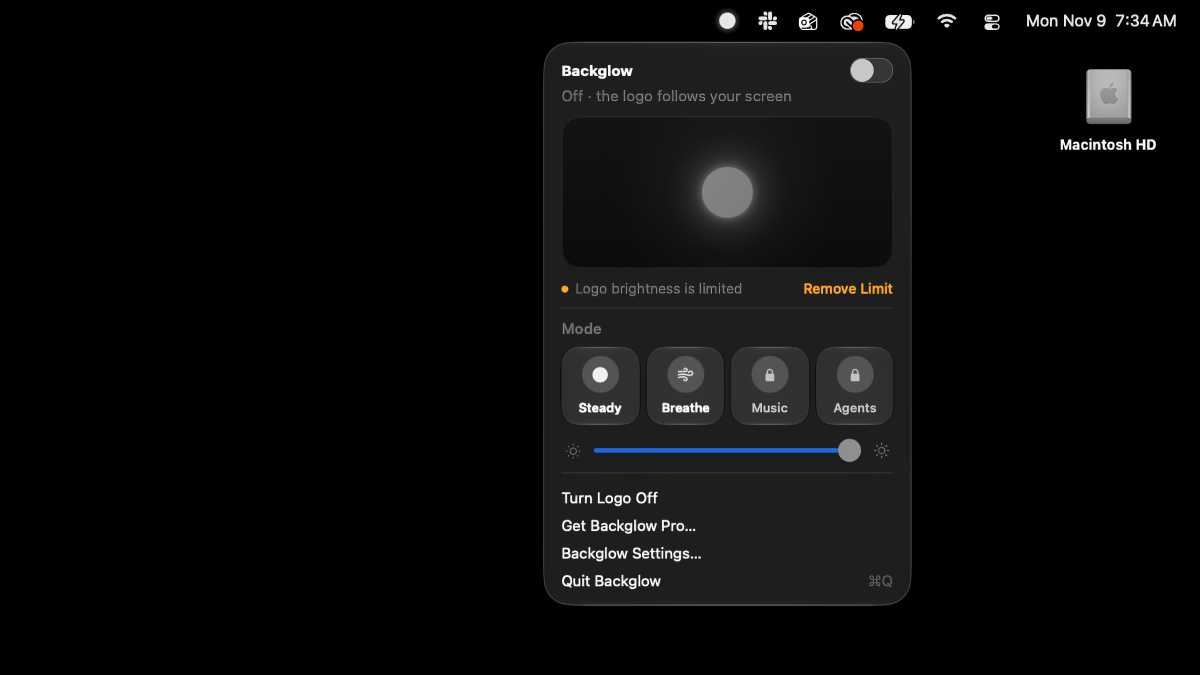
Fortunately, now, there’s an app for that. Juan Buis created Backglow, a utility that can be used to customize the glowing Apple logo. In addition to turning it off and on, the free version of Backglow provides settings for two different pulse modes and it can remove the brightness limit. If you pay $9 for Backglow Pro, it activates the ability to set the glow pulse to music, and use Claude Code for your own personal pulse modes.
Foundry


